How to control fan speed on an Apple Silicon Mac
macOS decides your fan speeds for you and offers no way to change them. Here is how fan control actually works on M-series Macs, what you can and cannot change, and how to do it without risking your machine.
What macOS does on its own
Every Mac with fans runs them from the SMC, a small controller that reads the thermal sensors and follows a fan curve Apple tuned for the average user. That tuning leans quiet: macOS would rather let the chip run warm, and even slow itself down, than spin the fans up early. Most of the time that is the right call. The rest of the time you are on a video call with a MacBook that sounds like a hair dryer, or compiling code on a machine that stays hot because the fans will not commit.
There is no setting anywhere in System Settings to change this. If you want a say in what the fans do, you need an app that talks to the SMC directly.
What you can and cannot control
- You can set fan speeds, either as a floor the fans never drop below or as a fixed RPM, on any Apple Silicon or Intel Mac that has fans.
- You cannot go past your hardware's limits. The fans have a maximum RPM the SMC enforces; no app changes that.
- You cannot add fans a Mac does not have. A fanless MacBook Air has nothing to control; the best you can do there is watch the temperatures.
- You should not be able to override thermal protection. A well-built fan app leaves Apple's own overheating safeguards in charge underneath everything it does. Treat any tool that claims otherwise as a red flag.
Controlling fans with QuellHeat
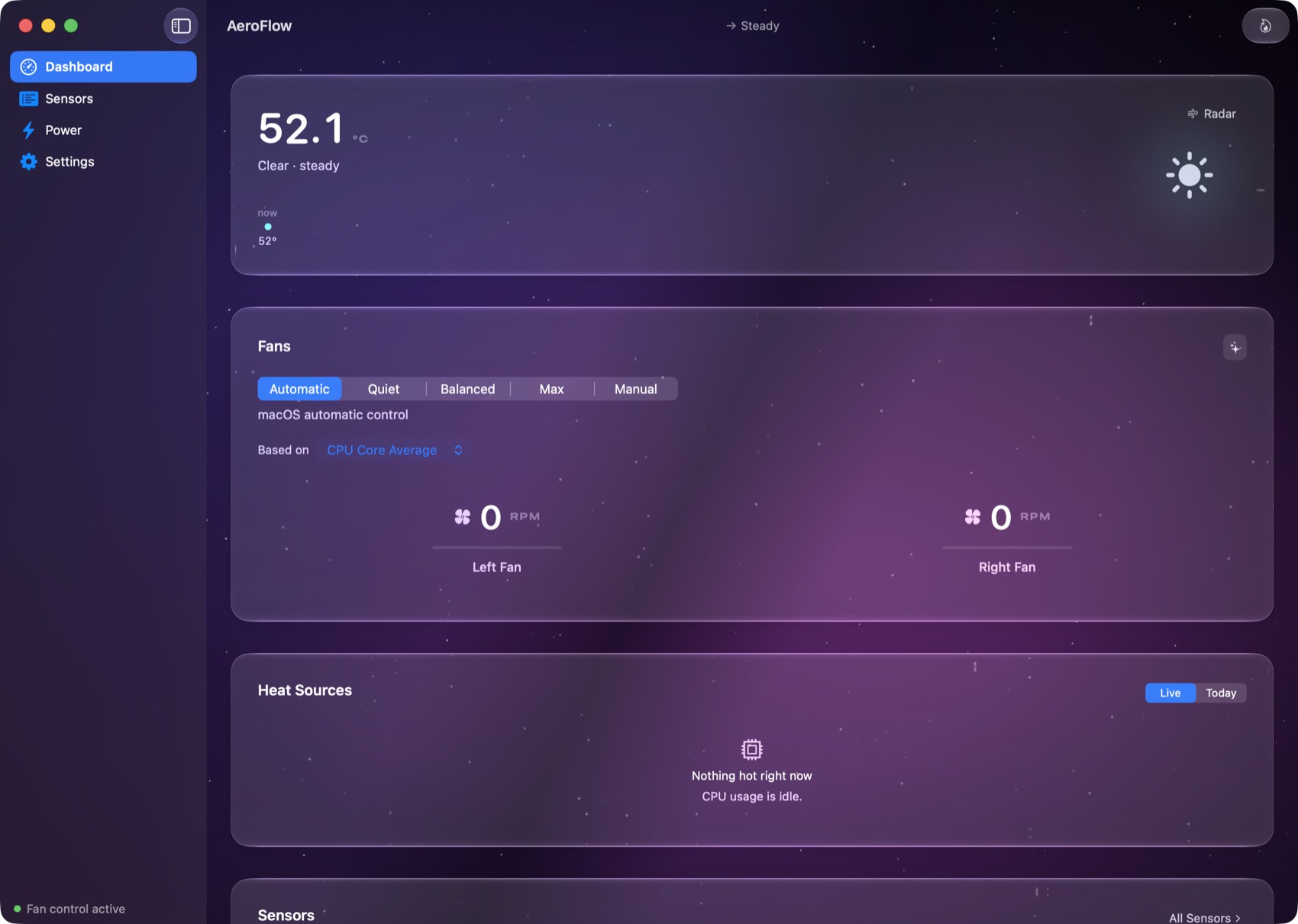
QuellHeat is our fan control and temperature monitoring app for macOS 14 and later, Apple Silicon and Intel. Setting it up takes about two minutes:
- Download and open the app. It is signed with a Developer ID and notarized by Apple, so there is no security bypass and no terminal involved.
- Approve the helper once. Writing fan speeds needs a small privileged helper, which macOS asks you to approve in System Settings. One approval, one time.
- Pick a mode. Quiet, Balanced, Max, or a fixed manual speed. Or build a custom mode: pick a trigger sensor, a speed, an icon, and switch to it in one click from the menu bar.
Monitoring is free forever: every sensor your Mac exposes, live in the app and in your menu bar. A one-time licence unlocks control of the fans.
Safety first, by design. QuellHeat never overrides macOS thermal safety, clamps every write to the limits your hardware reports, and hands the fans straight back to Apple's automatic control if the app quits, crashes, or the licence lapses.
Free and third-party alternatives
Fair is fair: you have options, and monitoring in QuellHeat is free, so you can run it next to any of them and compare readings.
- Macs Fan Control is the long-standing free choice. Solid RPM control, with the more advanced sensor-based rules behind a Pro upgrade.
- smcFanControl is a classic, but it is no longer maintained and predates Apple Silicon.
- Terminal tools exist on GitHub for the command-line inclined, though you give up safety rails and a menu bar readout.
Where QuellHeat earns its licence is the layer above raw RPM: one-click custom modes tied to the sensor you choose, both fans driven from one decision so they stay matched, power readings, and an interface that is native through and through, with real Liquid Glass on macOS 26.
When manual fan control is actually worth it
- Calls and recordings: hold the fans low and steady so the microphone does not pick up a ramp.
- Gaming and local LLMs: spin up before the heat arrives instead of after, so the chip holds performance longer.
- Long compiles and renders: a higher floor keeps temperatures from sawtoothing all afternoon.
- Hot rooms and summer desks: Apple's curve assumes a cool office; you know your actual room.