How to stop your MacBook fan from being so loud
Fans are the symptom, heat is the cause. Something is making your Mac hot, and the fix depends on what. Here is how to find it in about two minutes, and what to do when the noise arrives at the worst possible moment.
Step 1: find what's generating the heat
Open Activity Monitor (it's in Applications, then Utilities) and sort the CPU tab by "% CPU". Nine times out of ten the culprit is sitting right at the top: a stuck browser tab, a runaway sync client, a video call doing background blur, Spotlight reindexing after an update. Quit the offender and the fans wind down within a minute or two.
If you'd rather see it thermally, QuellHeat's free dashboard shows what's driving the heat right now, next to every sensor your Mac exposes.
Step 2: check the physical stuff
- Vents need air. A MacBook on a duvet or a lap traps its own exhaust. A desk, or anything that lifts the rear edge, makes a real difference.
- Dust is insulation. Fans that have gone loud gradually over months, not suddenly, often just need the vents cleaned.
- Room temperature counts. Apple tunes cooling for a comfortable office. A warm room in summer moves the whole curve up; direct sunlight is worse.
- Chargers and external displays add heat. Driving a big monitor is real work, and charging warms the chassis while it happens.
Step 3: take the ramp-ups out of your calls
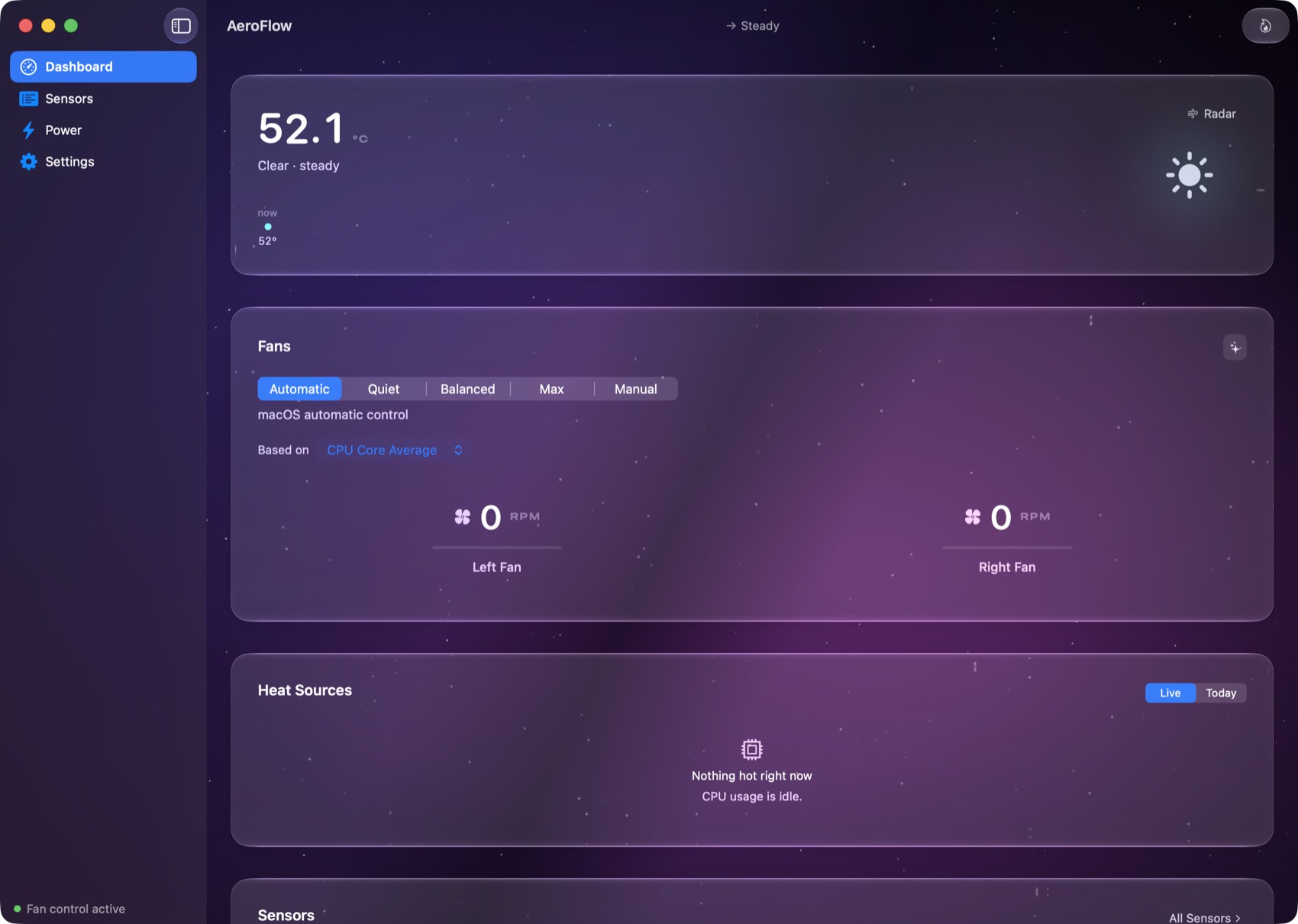
The noise people actually hate is rarely a steady hum. It's the ramp: fans surging up mid-sentence and dropping again, over and over, right into the microphone. That sawtooth happens because macOS, from everything you can observe of it, reacts to heat after it arrives.
A fan control app breaks the cycle by holding a modest, constant floor. The fans run slightly above minimum all the time, heat never builds to the surge point, and a steady low hum is dramatically less noticeable than a cycling one, both in the room and on a call. In QuellHeat that's one click: a custom mode with a minimum speed, triggered by the sensor you care about, switched from the menu bar. Set one up for meetings once and it's there forever.
Don't silence real work. If you're exporting video or compiling, loud fans are the machine doing its job; forcing them low just makes the chip throttle. Quiet the fans for calls and browsing, let them roar for renders.
When the noise means something is wrong
Fans at full blast on an idle Mac, with nothing eating CPU in Activity Monitor and a cool room, is not normal. Check for blocked vents and dust first. If temperatures read high at idle anyway, that's worth a closer look with a sensor readout before assuming the worst: kernel tasks, failing peripherals and misbehaving login items all show a signature in the numbers.